¶ Summary
Positional properties of elements, such a width or height, require a value and a unit. The choice of the unit used will impact the behaviour of the element.
¶ Pixels
This is the default unit, and ideal to work in conjuction with a background graphic.
Pixel-values allow for a precise positioning in relation to the background, and the resulting look will be consistent across screen resolutions.
Positioning an element with a pixel-value utilizes the size of the canvas. This canvas will be a rectangle that will always be visible to the user, with up to 2 edges filled with border content, depending on the resolution. Elements are positioned relative to this canvas size.
For instance, if a canvas was 500 pixels wide, and 1000 pixels tall, a button could have these properties
- width:
300px - left:
100px - height:
50px - top:
900px
The first two values indicate the width of the button, and it's distance from the left border of the screen. The canvas is 500 pixels wide, and the button is 300 pixels wide. In order to center the button horizontally, a distance of 100 pixels from either border would be needed. This is accomplished by specifying the left-property to 100px.
The other two values mean that the button is 50 pixels tall (1/20th of the canvas size), and has a distance to the top border of 900 pixels, meaning it is close to the bottom border.
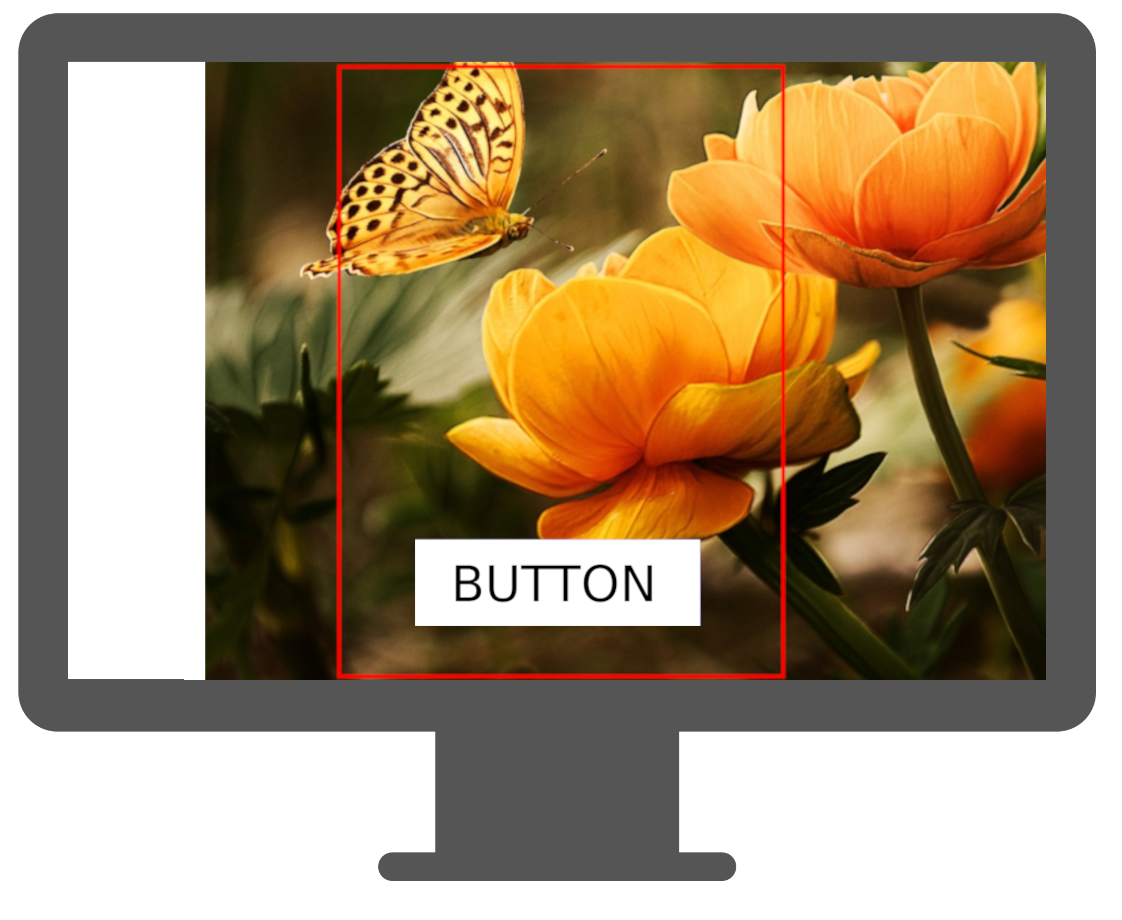
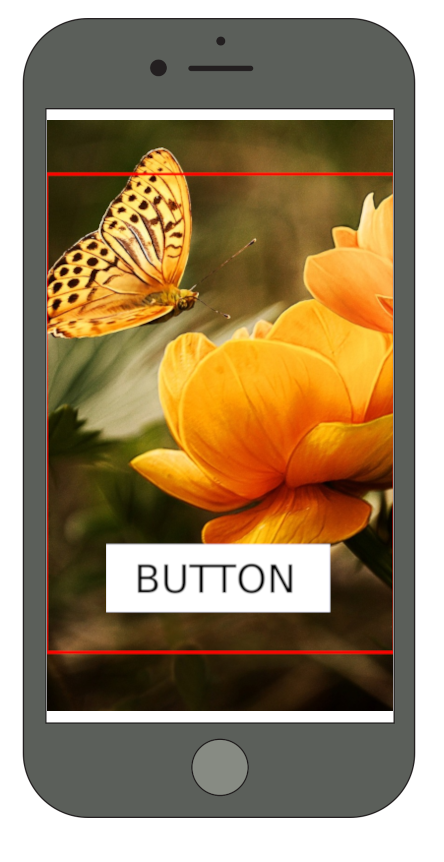
If the background image had an ideal button position exactly where this new button was just specified, it will always be rendered exactly in that position, exactly fitting the background.
Note: Most parameters can be given this unit, with "font-size" being an example. When fitting the canvas onto the screen, it is scaled up or down by a certain factor to fit exactly. This factor will also be used to scale all pixel-properties, so if the canvas had to be scaled down by a factor of 2, a font-size of 40px would be rendered as 20px.
¶ Example
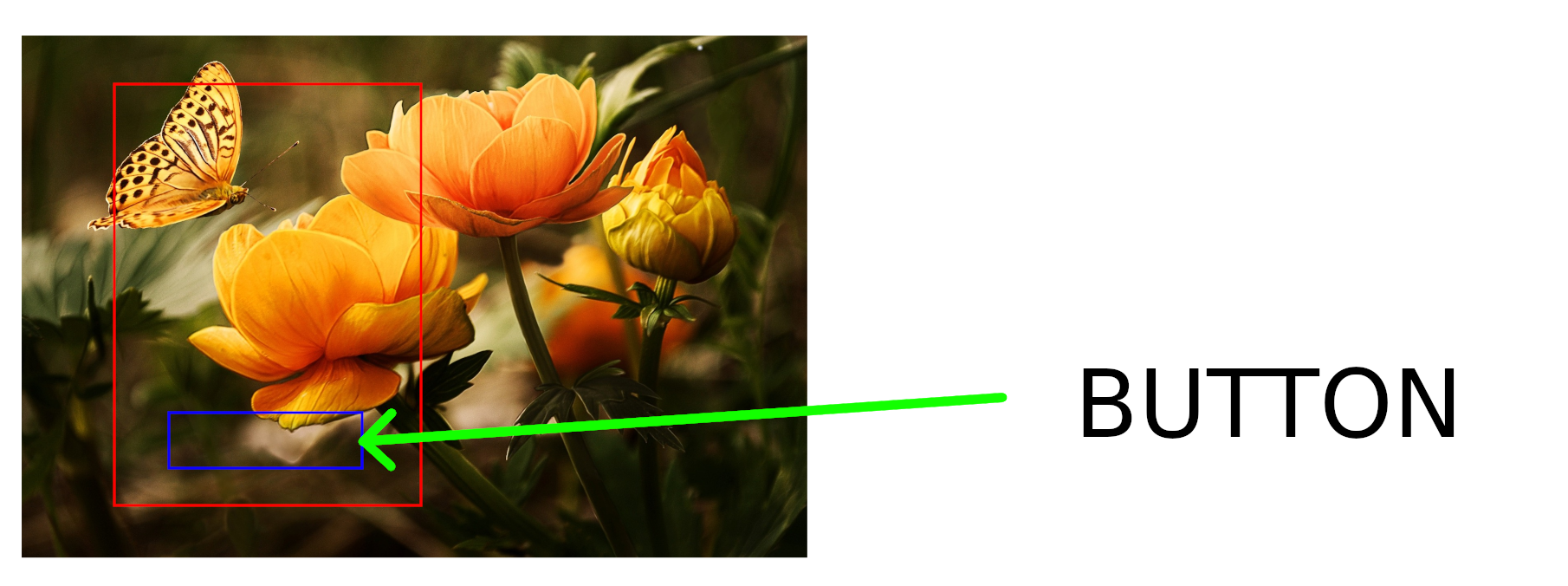
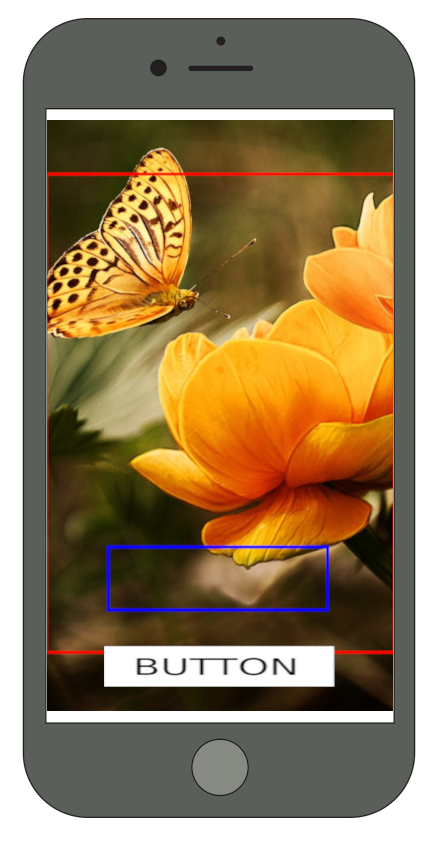
In the example above, we defined a section of the background image. This section is thus our canvas (outlined red). On this canvas, we want a button to be positioned in the area that is outlined blue, and it should always be positioned and scaled to exactly fit this area.
We then define a button, relative to our canvas size. The rendered page, according to the display ratio, would appear as shown below:
| Resolution #1 | Resolution #2 |
|---|---|
 |
 |
¶ Percentage
Alternatively, elements can be positioned relative to the display size directly, ignoring the canvas size. This can be done using one of these units
- % - percentage of the screen width/height
- vw(viewport-width) - percentage of the screen width
- vh(viewport-height) - percentage of the screen height
¶ Example
A button could be created with the following properties
- width:
60% - left:
20% - height:
5% - top:
90%
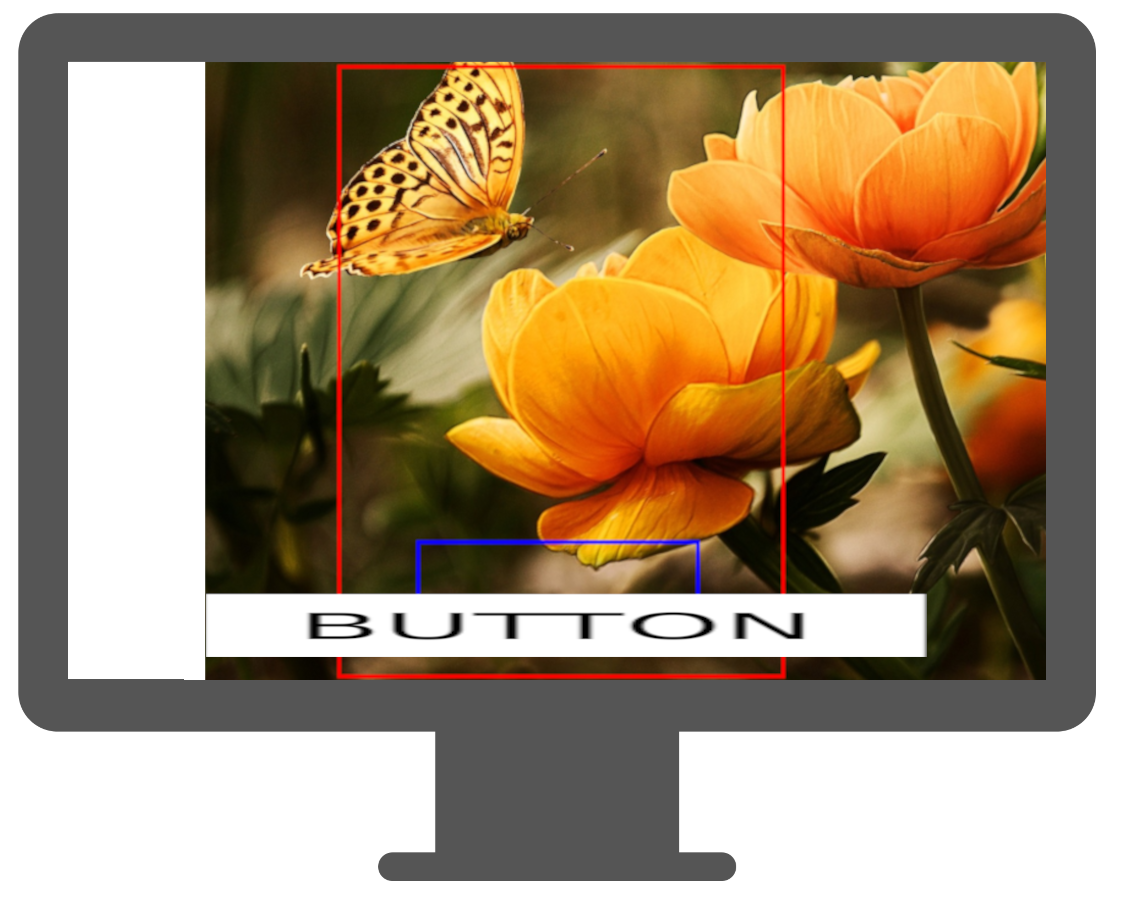
These are equivalent to the ones in the previous example, exept that they are not relative to the device's display, not the canvas (due to the unit '%' being used). The rendered page would appear like this:
| Resolution #1 | Resolution #2 |
|---|---|
 |
 |
Instead of being consistent with the background image, it is not always close to the bottom of the screen, and always as wide as 60% of the screen.
¶ Which to use
Both units have their benefits and drawbacks, so choosing the right one depends on the use-case.
They can be mixed mostly freely, and if in doubt, experimenting and utilizing the preview-functionality is encouraged.
As a rule of thumb:
If the element should be placed at a specific position within the background image, use pixels. Otherwise, use percentage.